Samsung Quick Share, one of the things iPhone users never stop bragging about is AirDrop. Tap a button, pick a device, done. Files move instantly with zero fuss. For years, Android users had to rely on a messy mix of Bluetooth, third-party apps, or slow cloud uploads just to send a photo to the person sitting next to them.
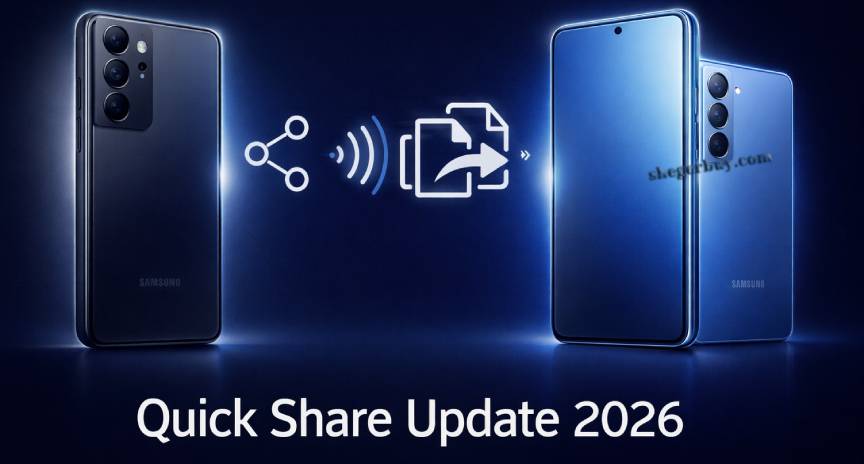
Samsung tried to solve that problem with Quick Share — and for a while, it was decent. But it had one glaring issue: it was mostly reserved for newer Galaxy devices. If you were rocking a Galaxy S10 or an older Note series phone, you were largely left out of the party.
That’s changing. Samsung has rolled out a meaningful update to Quick Share that brings AirDrop-like wireless file transfers to a much wider range of Galaxy phones — including older models many people still use every day. And honestly? It’s about time.
Here’s everything you need to know.
What is Samsung Quick Share ?
Quick Share is Samsung’s built-in wireless file-sharing feature, designed to let Galaxy device owners transfer photos, videos, documents, and other files between devices — fast, locally, and without needing an internet connection.
Think of it as Samsung’s answer to AirDrop, built directly into One UI.
How Does Quick Share Work?
Under the hood, Quick Share uses a combination of technologies to establish a fast, stable connection:
- Wi-Fi Direct — for high-speed data transfer
- Bluetooth — for discovering nearby devices
- NFC (on supported devices) — for quick pairing
Once two devices are within range and both have Quick Share enabled, they can see each other and exchange files within seconds. No cables, no cloud, no drama.
Key Features Before the Update
Even before this latest update, Quick Share offered some solid functionality:
- Transfer any file type (photos, videos, APKs, documents)
- Works without an internet connection
- Option to share with your own devices (cross-device sync)
- Integration with Samsung’s Windows app for PC sharing
- Privacy controls — you can choose who sees your device
The catch? It worked best — and most reliably — on newer Galaxy flagships. Older phones often experienced dropped connections, slower speeds, or simply couldn’t find nearby devices at all.
What’s New in This Update?
The latest Quick Share update is a genuine step forward, not just a patch. Samsung has focused on three things: broader device support, better performance, and smarter cross-device connectivity.
AirDrop-Like Functionality
The most exciting part of this update is how seamlessly it now works. Just like AirDrop on iOS:
- Nearby Galaxy devices appear automatically — no manual pairing required
- File transfers begin almost instantly after a single tap
- There’s no need to fiddle with Bluetooth settings or Wi-Fi networks manually
It feels effortless now, which is exactly what it should have felt like from day one.
Expanded Support to Older Galaxy Phones
Samsung has pushed Quick Share compatibility further back in its device lineup. Older Galaxy S, Note, and A-series phones running updated versions of One UI can now access the full Quick Share experience — the same one previously limited to newer flagships.
Speed, Stability, and Ease of Use
Users who’ve tested the update report noticeably faster transfer speeds and far fewer connection drops. Large video files that previously took multiple attempts now go through cleanly on the first try.
Cross-Device Compatibility
Quick Share now plays nicer across the Samsung ecosystem:
- Galaxy phones ↔ Galaxy tablets
- Galaxy phones ↔ Windows PCs (via the Samsung Quick Share Windows app)
- Multiple devices can receive files simultaneously
AirDrop vs Samsung Quick Share : A Fair Comparison
It’s worth being honest about where Quick Share stands compared to AirDrop — both the similarities and the gaps.
Where They’re Similar
- No internet required — both work entirely over local wireless connections
- Automatic device discovery — no manual setup or pairing needed
- Fast transfers — large files move in seconds, not minutes
- Native integration — both are baked into the operating system, not third-party apps
- Privacy controls — both let you choose who can see and send to your device
Where They Still Differ
| Feature | Samsung Quick Share | Apple AirDrop |
|---|---|---|
| Ecosystem | Samsung Galaxy (primarily) | Apple devices only |
| Cross-platform | Limited Windows support | Mac + iPhone + iPad seamlessly |
| UI simplicity | Improving, but more steps | Extremely simple |
| Non-brand devices | Limited | None |
| Speed | Fast (Wi-Fi Direct) | Very fast (Wi-Fi Direct) |
The honest takeaway: Quick Share is now closer to AirDrop than ever before. But Apple’s ecosystem integration — where an iPhone, MacBook, and iPad all talk to each other effortlessly — is still something Samsung hasn’t fully matched. What Samsung has done is make Quick Share genuinely competitive for Android users, which matters a lot.
Supported Older Galaxy Devices
Samsung hasn’t released an exhaustive compatibility list, but based on the One UI requirements and user reports, here’s a general picture of what’s now supported:
Galaxy S Series
- Galaxy S10, S10+, S10e
- Galaxy S20, S20+, S20 Ultra
- Galaxy S21 series and S26 Ultra & older S series (already supported)
Galaxy Note Series
- Galaxy Note 10, Note 10+
- Galaxy Note 20, Note 20 Ultra
Galaxy A Series
- Galaxy A52, A53, A54
- Galaxy A72, A73
- Select A32 and A42 models
Important: Compatibility depends on your One UI version and whether you’ve received the relevant software update. Check Settings → Software Update to make sure you’re running the latest version.
How to Use Quick Share on Your Galaxy Phone
Using Quick Share after the update is refreshingly simple. Here’s the full step-by-step:
Step 1: Enable Quick Share
Go to Settings → Connected Devices → Quick Share and toggle it on. You can also pull down the notification shade and tap the Quick Share tile.
Step 2: Set Your Visibility
Choose who can discover your device:
- Contacts only — only people in your contacts list
- Everyone — any nearby Galaxy device
- Your devices — only your own Samsung devices
Step 3: Select the File You Want to Share
Open your Gallery, File Manager, or any app. Long-press or select the file(s) you want to send.
Step 4: Tap “Share” → Choose Quick Share
In the share sheet, tap Quick Share. Your phone will automatically scan for nearby compatible devices.
Step 5: Select the Receiving Device
A list of nearby devices will appear. Tap the one you want to send to.
Step 6: Accept on the Receiving Device
The recipient gets a notification and taps Accept. The transfer begins immediately.
That’s it. No accounts, no apps, no passwords
Requirements & Limitations
Quick Share is impressive, but it’s worth knowing what it needs to work well:
Requirements:
- One UI 2.1 or higher (newer versions recommended)
- Bluetooth and Wi-Fi both turned on
- Both devices within approximately 30 feet (10 meters) of each other
- Samsung account not required for basic transfers
Limitations:
- Works best between Samsung devices; limited support for non-Samsung Android phones
- Non-Samsung Android devices may need Nearby Share (now Google’s “Quick Share”) instead
- Very large files (multiple GBs) may transfer slower than expected over congested Wi-Fi environments
- Cross-platform transfers to non-Samsung Windows PCs require the Samsung Quick Share app
Why This Update Matters
This isn’t just a feature tweak — it actually means something for real people.
It Extends the Life of Older Devices
Not everyone upgrades their phone every two years. Plenty of people are still using Galaxy S10s or Note 20s and getting along just fine. Bringing Quick Share to those devices means they stay useful and competitive longer.
It Makes Samsung’s Ecosystem Stronger
One of Apple’s biggest advantages is how seamlessly its devices talk to each other. Every update that brings Samsung devices closer to that experience makes the Galaxy ecosystem more appealing — and more sticky.
It Reduces Dependence on Third-Party Apps
Before this update, many Android users relied on apps like SHAREit, Xender, or even WhatsApp just to move a file between two phones in the same room. That’s a terrible experience. Quick Share eliminates that friction entirely.
It Closes the Gap with AirDrop
Samsung is clearly aware that AirDrop is a selling point for iPhones. By making Quick Share work more like AirDrop — and making it available to more users — Samsung is directly addressing one of the most common reasons people cite for preferring Apple’s ecosystem.
Tips to Get the Best Quick Share Experience
A few small things make a big difference:
- Stay close — Keep devices within 10 meters for the most stable connection
- Use both Wi-Fi and Bluetooth — Quick Share uses both together; disabling either will hurt performance
- Set visibility before sharing — Make sure both devices are discoverable before you start
- Keep software updated — The new features only work on the latest One UI build
- Restart Quick Share if devices don’t appear — Toggle it off and on in settings; this usually resolves discovery issues
Useful Resources
For more information and technical details, check out these authoritative sources:
- Samsung Official Quick Share Support Page — Official setup guides and device compatibility info
- Android Authority – Quick Share vs Nearby Share Explained — In-depth comparison of Android file-sharing options
- The Verge – Samsung Quick Share Coverage — Latest news and hands-on impressions from tech journalists
Conclusion
For years, “just AirDrop it” was a phrase Android users could only roll their eyes at. Samsung Quick Share was a solid attempt at a solution, but it was held back by limited device support and inconsistent performance.
This update changes that picture meaningfully. Older Galaxy phones can now send and receive files with the kind of speed and simplicity that used to feel like an Apple-exclusive luxury. It’s not a perfect clone of AirDrop — Samsung still has ground to cover in terms of cross-platform polish — but it’s genuinely good now. Useful, fast, and built right into the phone you already own.
If you’ve been sleeping on Quick Share, it’s time to give it another look. Pull down your notification shade, enable it, and try it out. You might be surprised how much it’s improved.
Frequently Asked Questions
Q: Does Quick Share work with non-Samsung Android phones? Not natively. Quick Share is optimized for Samsung Galaxy devices. For transfers between a Samsung phone and a non-Samsung Android device, you’ll want to use Google’s Nearby Share (also now branded “Quick Share” by Google, confusingly enough), which works across all Android phones.
Q: Do I need an internet connection to use Quick Share? No. Quick Share works entirely over a local Wi-Fi Direct and Bluetooth connection. You don’t need mobile data or a Wi-Fi network — just two devices near each other with Quick Share enabled.
Q: How fast is Quick Share compared to AirDrop? Both use Wi-Fi Direct and offer comparable speeds for most everyday files — photos, videos under a few hundred MB, and documents transfer in seconds. For very large files, speeds are similar, though real-world performance can vary based on device hardware and wireless environment.
Q: Why can’t I see nearby devices when using Quick Share? This is usually caused by one of three things: (1) the receiving device’s visibility is set to “Contacts only” or off entirely, (2) Bluetooth or Wi-Fi is disabled on one of the devices, or (3) the devices are running different One UI versions. Try toggling Quick Share off and back on, and make sure both devices are set to “Everyone” for visibility during the transfer.
Q: Which One UI version do I need for the new Quick Share features? Samsung recommends One UI 2.1 or higher for basic Quick Share functionality. For the latest AirDrop-like improvements and expanded device support, updating to the most recent available One UI version for your phone will give you the best experience. Go to Settings → Software Update to check.